
Quick Answer: You can quickly check your Empower bill online by using the Pay As Guest option, Empower e-Services, or the Empower mobile app. For quick balance checking, enter your Empower account number on the Pay As Guest page and search for the outstanding balance. Registered users can also log in to view monthly bills, statements, and payment details.
If you live in a Dubai apartment or community connected with Empower, then your cooling bill is something you need to check regularly. Empower is linked with district cooling services, also called chiller or cooling charges by many residents.
For many people, Empower bill check simply means checking the outstanding balance before payment. Some users want to download the monthly bill. Some want to see why the bill is high. And some just want to pay quickly without logging in.
The good thing is that Empower offers more than one way to check your bill. You can use Pay As Guest for quick balance checking, e-Services for full account access, or the mobile app if you prefer using your phone.
What Is Empower Bill Check?
Empower bill check means checking your district cooling bill or outstanding balance before paying it. This bill is different from your DEWA bill. DEWA covers electricity and water, while Empower is mainly for cooling service in many Dubai communities.
A simple way to think about it is this. Bill check is when you view the amount. Bill payment is when you actually pay that amount. Both are connected, but they are not the same thing.
Your Empower bill may include monthly charges, consumption charges, previous balance, or other account-related amounts. So it is better to check the bill properly before paying, especially if the amount looks higher than usual.
What You Need Before Checking Your Empower Bill
Before you start, keep your Empower account details ready. The most important detail is your Empower account number, especially if you want to use Pay As Guest.
| Detail | Why You Need It |
|---|---|
| Empower account number | To check outstanding balance or identify your bill |
| Registered mobile number | Useful for registration and account verification |
| Registered email | Helps with e-Services registration or account access |
| Username and password | Needed for full e-Services login |
| Empower mobile app | Useful for viewing bills and account details from mobile |
Empower’s Pay As Guest page asks users to enter the account number and press search to retrieve the outstanding balance. So if you only want a quick check, the account number is the main thing you need.
How to Check Empower Bill Without Login
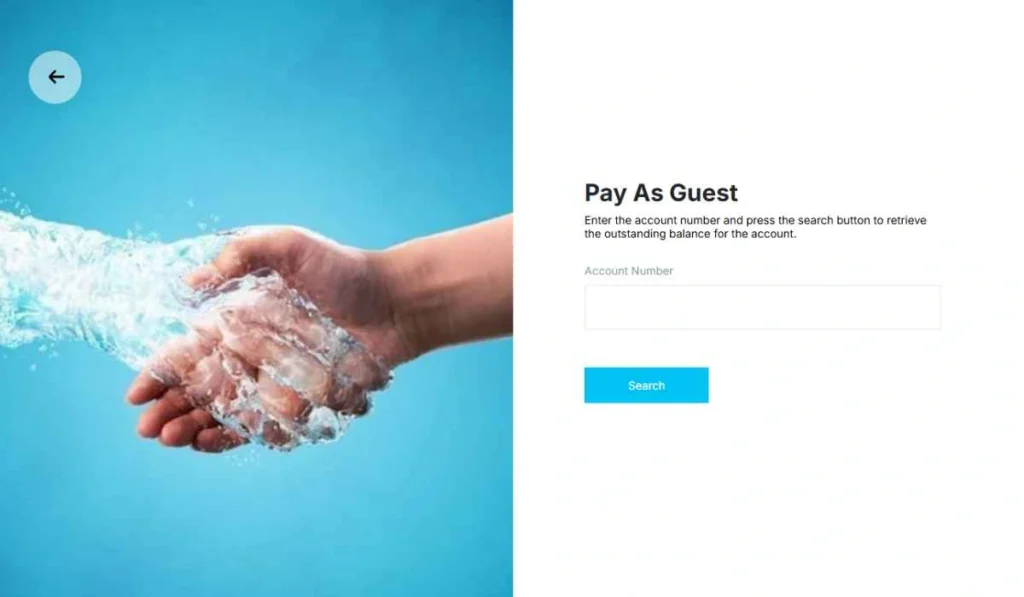
The easiest method for many users is Pay As Guest. You do not need to open the full e-Services account just to check the outstanding balance. This is useful when you only want to see the amount and pay quickly.
- Open the official Empower Pay As Guest page
Start from the official Empower e-Services portal. Do not use random payment links or unofficial pages. - Enter your Empower account number
Type the account number carefully. If one digit is wrong, the account may not show or you may not get the correct balance. - Press the search button
After entering the account number, press search. The page is made to retrieve the outstanding balance for that account. - Review the outstanding balance
Check the amount properly before paying. If the amount looks too high, check your monthly bill or statement from e-Services or the app. - Pay only if the details look correct
If the account number and amount are correct, you can continue with payment if the option is available. - Save the receipt after payment
If you pay the bill, keep the receipt or confirmation. Do not delete it right away. It helps if the payment status takes time to update.
How to Check Empower Bill Through e-Services
Empower e-Services is better if you want full account access. It is not only for quick balance checking. The e-Services portal includes options like login or sign up, new registration, track registration request, and Pay As Guest.
You can use e-Services like this:
- Open the official Empower e-Services portal.
- Log in with your username and password, or sign up if you are new.
- Verify your account using the required account details.
- Go to the billing or account section.
- View your monthly bill, statement, or outstanding balance.
- Download the bill if you need a copy.
This method is better for tenants or owners who want to track bills every month. You can see more details than the guest payment page, and that helps when the amount does not look normal.
How to Check Empower Bill on Mobile App
If you prefer using your phone, the Empower mobile app is also useful. The app listing says users can manage district cooling service accounts, create new registration requests, view or download monthly bills, view consumption charges, pay bills securely, download account statements, raise service requests, and track requests.
You can use the app for:
- Viewing monthly bills
- Downloading bills
- Checking consumption charges
- Paying bills securely
- Downloading statement of account
- Raising or tracking service requests
- Requesting final settlement or clearance-related services if available
For regular users, the app can be easier than opening the website each time. Just make sure you are using the official Empower Energy Solutions app, because there are other apps with similar names that are not related to Dubai district cooling.
Empower Bill Payment Options After Checking
After checking the bill, you can pay it through Empower’s official channels. But first, check the account number and outstanding balance. Sounds simple, but this is where mistakes happen.
You can usually pay through:
- Empower e-Services Good for registered users who want full account access.
- Pay As Guest Good for quick payment using only the account number.
- Empower mobile app Good for users who want to check and pay from the phone.
- Online banking where available Empower’s net banking payment guide says users can log in to e-Services or use Pay As Guest, then choose payment options such as credit card or net banking.
- Bank or utility payment channels Some UAE banks list Empower under utility bill payment. Emirates NBD, for example, lists Empower with bill payment limits for online banking and cash deposit machine channels.
After payment, save the receipt. If the amount does not update quickly, the receipt is your proof.
Common Problems When Checking Empower Bill
Sometimes the bill does not show, or the payment status looks confusing. Most of the time, the issue is small.
- Wrong account number: Check the account number again. One wrong digit can stop the balance from showing.
- Registered mobile or email does not match: If you are trying to register or access e-Services, your mobile number or email may need to match Empower records.
- e-Services login issue: If login is not working, try resetting your password or checking your registered details.
- New registration is not active yet: If you recently moved in, your account setup or registration may still be in process.
- Payment done but balance still showing: Wait for the payment to update. Keep your receipt and check again later.
- App not opening or bill not downloading: Update the app, restart your phone, or try the web portal instead.
- Statement or consumption details not updated: Sometimes account details may take time to refresh. If it stays the same for too long, contact Empower support.
Simple Tips Before Paying Empower Bill
Before paying your Empower bill, take a minute and check the details. Do not just pay because the amount is shown on screen.
- Check the account number before payment.
- Review the outstanding balance carefully.
- Download the monthly bill or statement if the amount looks high.
- Check consumption charges if available in the app or e-Services.
- Save your payment receipt after payment.
- Use official Empower channels only for bill checking and payment.
- Contact billing support if the amount looks wrong or the bill does not update.
If your Empower bill suddenly looks higher than usual, do not panic right away. Cooling usage can change, especially in hot months. But still, check the bill details, previous balance, and consumption charges before paying.
FAQs About Empower Bill Check
How can I check my Empower bill online?
You can check your Empower bill through Pay As Guest, Empower e-Services, or the Empower mobile app. Pay As Guest is useful for quick outstanding balance checking with your account number.
Can I check the Empower bill without logging in?
Yes, you can use Empower Pay As Guest. Enter your Empower account number and press search to retrieve the outstanding balance.
What details do I need for Empower Pay As Guest?
You mainly need your Empower account number. Entering the correct account number helps the system find your outstanding balance.
Can I download my Empower monthly bill?
Yes, the Empower mobile app listing says users can view or download monthly bills and download account statements.
Why is my Empower bill not showing?
Your bill may not show because the account number is wrong, your registration is not active, your login details are incorrect, or the app/website has a temporary issue. Check your details first.
How do I pay my Empower bill online?
You can pay through Empower e-Services, Pay As Guest, or the Empower mobile app. Empower’s net banking guide also mentions payment options such as credit card and net banking through e-Services or Pay As Guest.
Where can I contact Empower for billing issues?
For billing or account issues, use Empower’s official website, e-Services support, mobile app support, or customer service channels. Avoid sharing account details on unofficial pages.
Final Thoughts
Empower bill check is simple when you have your account number ready. For a quick check, use Pay As Guest and view the outstanding balance. For full bill details, use Empower e-Services or the mobile app where you can view bills, statements, and consumption charges.
Before paying, check the account number, outstanding balance, and bill details properly. And yes, save the receipt after payment. Have you faced any Empower bill issues like balance not showing, bill too high, or payment not updating? Share your issue in the comments, it may help another Dubai resident too.